Intellemo Script to Video, Song to Video, URL to Video and Product to Video Compared: What Each Mode Does
Updated November 19, 2026. A news analysis and guide built from Intellemo’s public documentation and landing pages, the “Product news” section of its partner portal (a page that requires a partner login), a screenshot of the create screen supplied by the site owner and our own screenshots of the public pages. Disclosure: the owner of this site has an account in Intellemo’s affiliate program, which pays commission on referred customers. This article contains an affiliate link, labelled and marked sponsored, and we may earn a commission if you sign up through it, at no extra cost to you. The research and drafting tools we use for these articles include Claude from Anthropic. We did not test the features described below for this article, so what follows is Intellemo’s own description, organized and put in context. Separately, on November 19 we made three short test videos with Intellemo, which are described in our Intellemo review. This is not purchasing advice.
Visit Intellemo
Affiliate link: we may earn a commission if you sign up, at no extra cost to you.
The short version
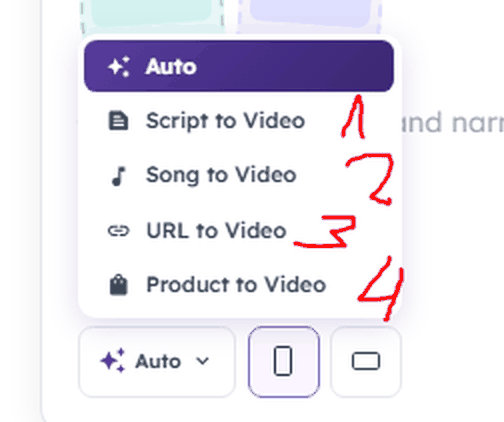
When you start a story in Intellemo, the create screen has a mode menu with an “Auto” option and four generation modes: Script to Video, Song to Video, URL to Video and Product to Video. Intellemo’s documentation describes them in one line each: turn a written script into a video, create a video based on a song or audio, generate a video from the content of a website URL, and create a product-focused video from your product images and details. All four then follow the same pipeline: you review a script, an audio board, a storyboard and clips, and you only need to pay for video seconds when you approve the storyboard and ask for clips.
That shared pipeline is the main thing to understand. The four modes differ in what you hand Intellemo at the start and in which assets it uses to shape the first draft. They do not, according to the documentation, change the billing rules. The honest gap is Song to Video: it appears in the menu, in the documentation list and in the partner portal’s product news, but we found no public step-by-step guide for it, so we know less about it than about the other three.
What every mode has in common
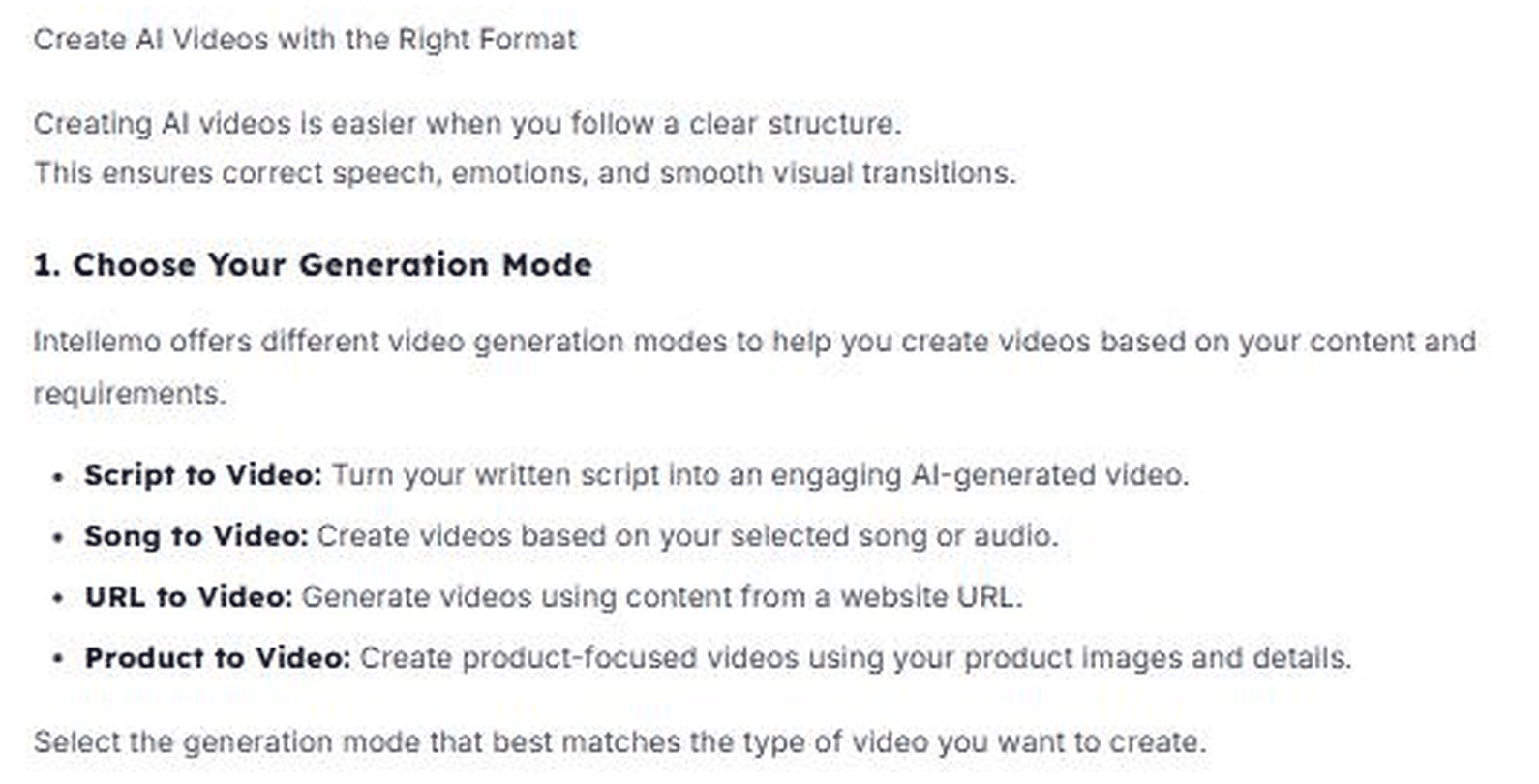
The documentation’s “how to generate an AI video” page gives a single flow for all modes, dated November 18, 2026:
- Choose the mode from the menu.
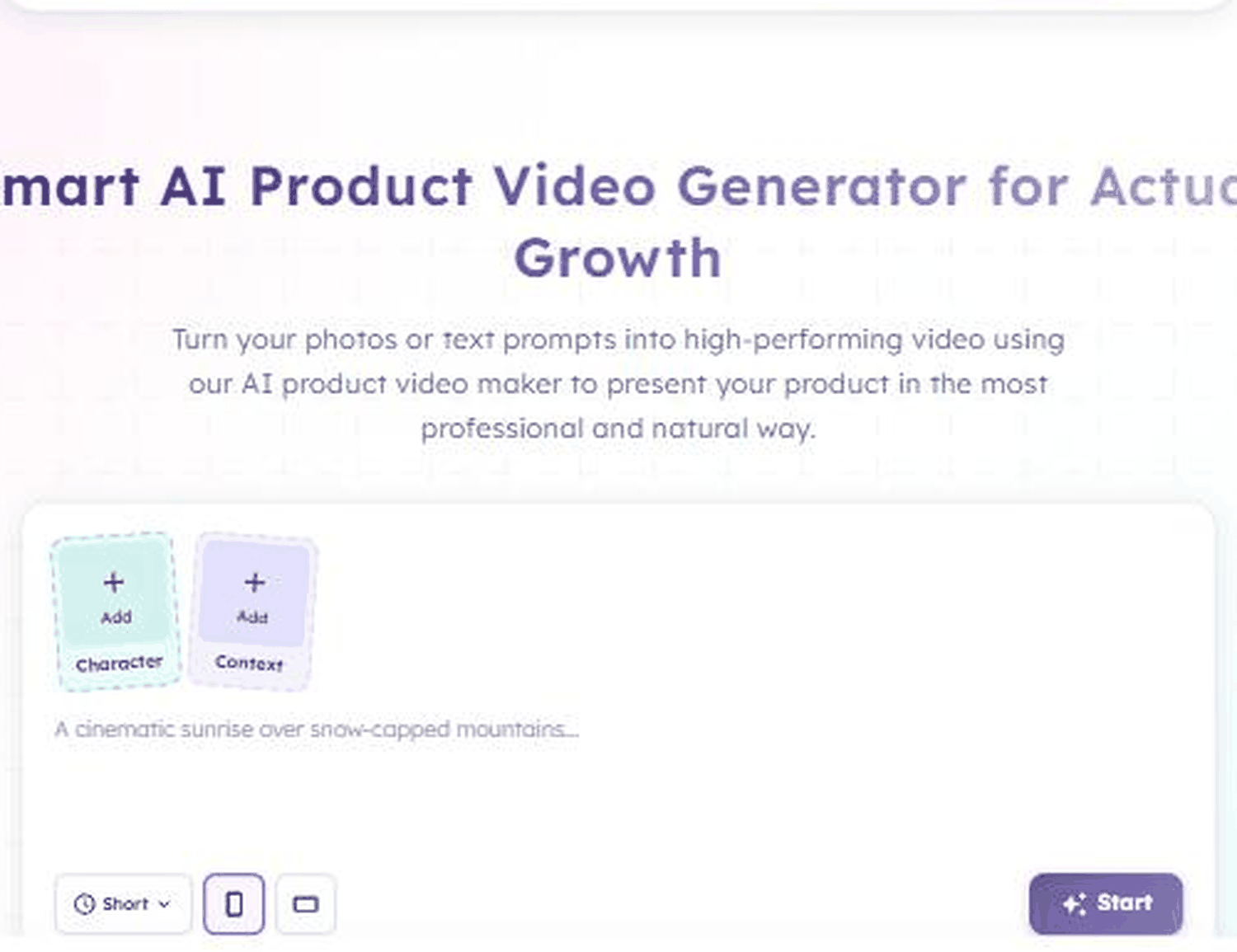
- Choose a character. You can upload your own assets, reuse earlier uploads, add AI-generated real or animated characters, or select a voice-over.
- Add context. Visual references such as product images, logos, brand assets, website URLs, places or vehicles.
- Write a prompt. Simple or detailed. Intellemo says more context helps it understand what you want.
- Pick an aspect ratio. 9:16 vertical for Reels, TikTok and Shorts, or 16:9 landscape for YouTube and presentations.
- Press Start. Intellemo expands your input into a detailed script with visuals, dialogue and sound.
- Approve, Revise or Stop. Approve to continue, Revise to change the script, or Stop to discard the version and start again.
- Review the Audioboard, Storyboard, Clips and Preview. Listen to dialogue and music, check scenes and transitions, check the generated clips and watch the full preview.
When you pay
Intellemo’s documentation says you can create the script, generate audio and build the storyboard before buying video seconds. Seconds are needed “when you are ready to turn your approved storyboard into video clips”. The page is blunt on one point: you cannot generate the final video for free, and if your balance is too low you can still review the script, audio and storyboard but cannot generate the clips. A storyboard, it stresses, is a preview, not the final video. Our Intellemo review covers the plan prices and the policy that paid generation is generally non-refundable once started.
1. Script to Video
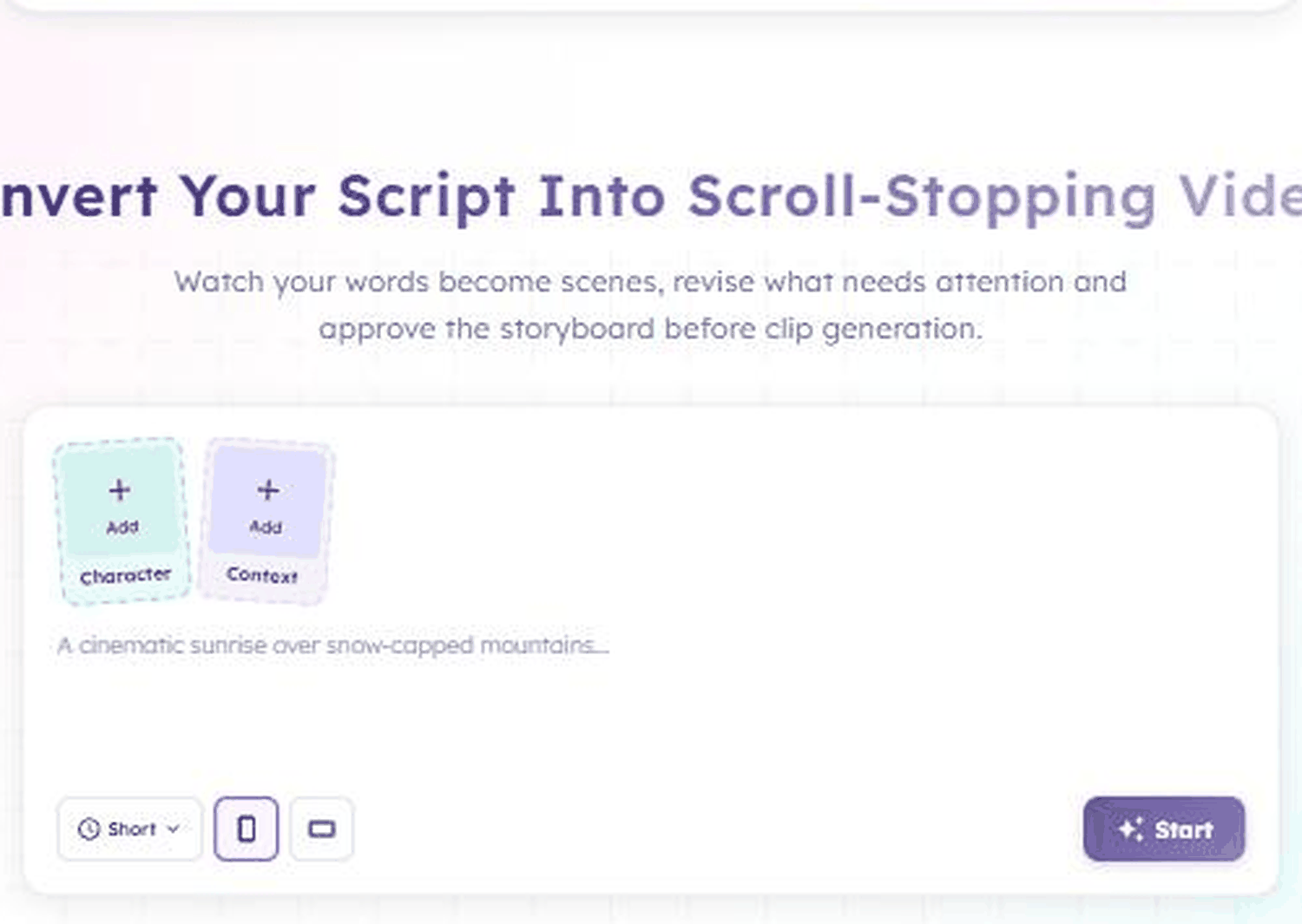
What you start with: a finished script or a concept. The partner portal’s entry says Intellemo can generate a complete script from an idea, including dialogue, character actions, scenes and story progression, and that you can edit it or ask for revisions before moving to the next stage.
What Intellemo says it does: the Script to Video landing page describes the product as building “complete videos, not AI clips”, structuring your content into connected scenes, shots, dialogue and visual direction. It says you can listen to the narration and inspect the storyboard before rendering, and change a character, expression, background, camera angle, lighting or product placement in one scene so that only that scene regenerates while the approved storyboard and audio stay as they are.
Use cases it suggests: short social videos for Reels and Shorts, explainer videos that break a detailed script into scenes, and product or brand videos that place products, logos and screenshots where you approve them.
Who it suits: anyone who already has the message approved, such as agencies working to client scripts, since the approval steps come before generation.
2. Song to Video
What you start with: a song or audio. The documentation says the mode creates videos “based on your selected song or audio”. The partner portal’s entry, dated November 11, adds that it helps transform music into video content, for music-driven content, creative storytelling or visual concepts.
What we could not find: a public guide with steps, limits (song length, formats), how the visuals follow the music, whether lyrics are used, or how the mode is billed. Intellemo’s pricing page lists “music videos, jingles and songs” among the uses of the Story plan, which suggests the mode is meant for that tier, but it does not spell out how.
Our own caution: if you upload a song, make sure you have the right to use it. Music you did not create may be protected, and a platform’s copyright systems may flag or mute a video made from it. Intellemo’s copyright policy and terms of use are the place to check what it requires.
3. URL to Video
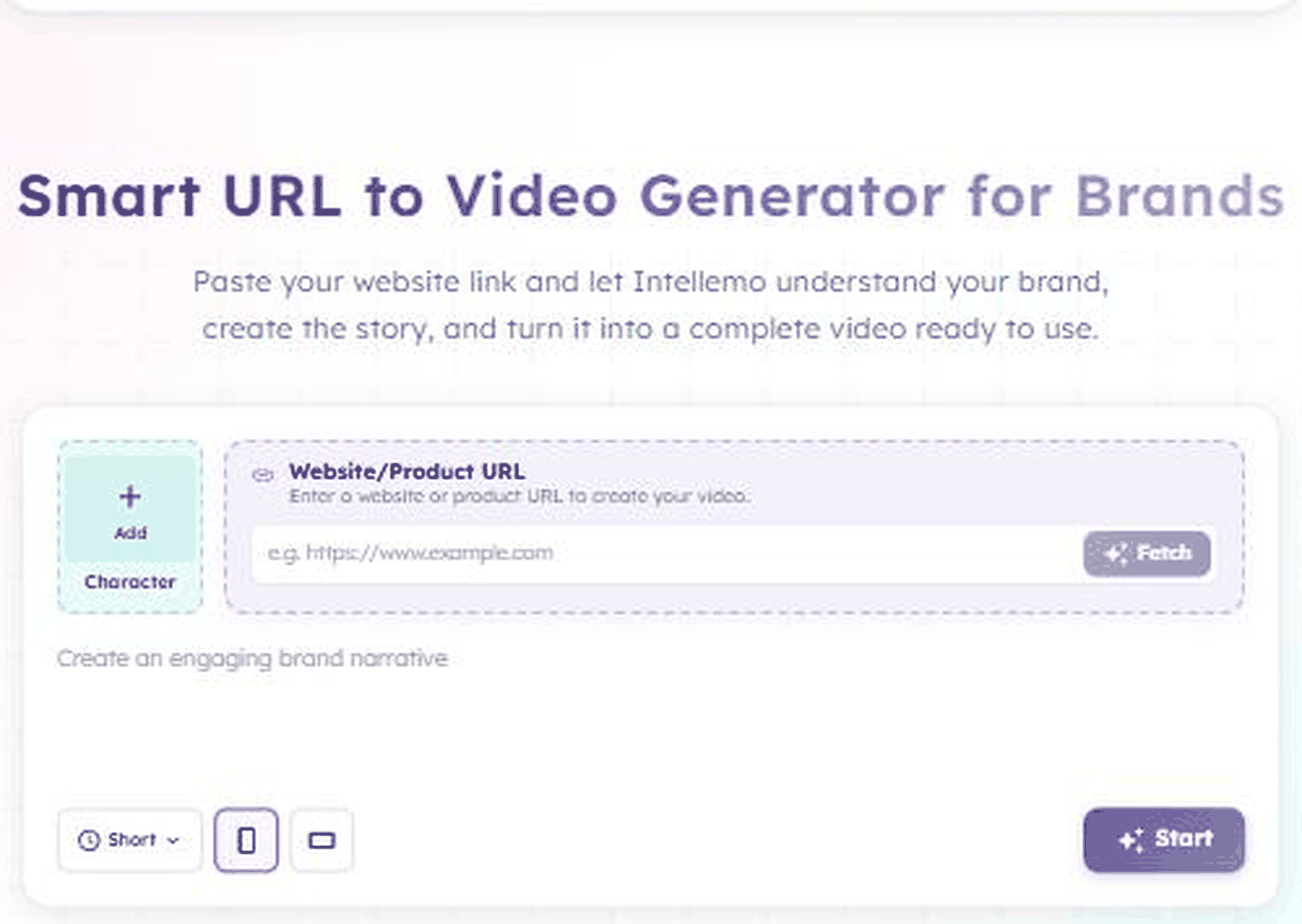
What you start with: a website, product page, service page or landing page URL. Intellemo’s step-by-step guide has you open Context, enter the URL under Website/URL and press Enter. It then analyzes the page and retrieves the available images. You pick images with the + icon, assign each a category such as Place, Product, Logo or Vehicle, give it a name, and press Add to Story. Then you write a prompt, for example asking for a product launch story showing the selected product and logo, and continue with normal generation.
What Intellemo says it does: the URL to Video page says it analyzes the website, identifies relevant business and product information and captures brand assets such as a logo, then uses that context for the story, script, visuals and product placement. It describes a single workflow from URL through script, visuals, voice, clips, AI music, sound, lip-sync and the final video.
Who it suits: small teams with a product page and no script, and stores with many product pages, since the page does most of the briefing.
Our cautions: check you have the rights to the images and text on any page you feed in, especially someone else’s website. The documentation does not say how much of the page text Intellemo uses or how accurate its reading of the page is, so check the generated script for wrong prices, claims or product names before you approve it.
4. Product to Video
What you start with: product images and details. The partner portal’s entry says you can use your product as the starting point rather than building everything from scratch, aimed at brands, marketers, e-commerce businesses and agencies.
How it works: Intellemo’s guide on exact product videos says to open Context and upload images of your actual product, choose from earlier uploads, or enter your website URL to fetch product images. It recommends several angles (front, back, sides, top, bottom and close-ups of important details), clear high-resolution photos with good lighting and little background clutter, and a specific version if the product comes in several colors. The sample prompt asks the model to keep the color, shape, packaging, logo and design the same throughout. Your uploaded product can be reused in future projects.
What the landing page claims: consistent quality with realistic lighting and physics, synced voice-overs in several languages, formats suited to Amazon, Shopify and social feeds, and full commercial ownership of generated assets. These are marketing claims we did not test. Read Intellemo’s terms before relying on the commercial-rights statement.
Who it suits: sellers who need many product clips, as long as product accuracy holds up in a test. Accuracy is the main risk, because the page itself says the goal is to stop the AI guessing how unseen angles look.
The four modes side by side
- Script to Video: you provide a script or concept. Best when the message is already decided. Main risk: a weak script gives a weak video, since the pipeline follows what you approve.
- Song to Video: you provide a song or audio. Best for music-led content. Main risk: music rights, and thin public documentation.
- URL to Video: you provide a web page. Best when the page already explains the offer. Main risk: wrong or outdated details pulled from the page.
- Product to Video: you provide product photos. Best for product showcases. Main risk: product accuracy from angles you did not upload.
Watch Intellemo’s own tutorial
Video: Intellemo AI Full Tutorial | Create Cinematic AI Videos Step by Step, published by Intellemo on YouTube. It is the company’s own video, so treat it as a product demonstration, not an independent test.
What it could cost to try all four
Because script, audio and storyboard review come before you pay, you can test the planning stage of every mode without buying seconds. Only the clips cost. One 15-second test per mode would use 60 seconds, which is half of the 120 seconds listed for each plan (Story $48, Studio $78, Cinematic $96 in our review), before any revision, since revisions also use seconds. Plan prices may differ from what you see at checkout.
How to choose a mode
- You have a finished message: Script to Video.
- You have a web page that explains the offer and no script: URL to Video.
- You have good product photos from several angles: Product to Video.
- You have music you own or license and want visuals for it: Song to Video, with a short test first.
- You are unsure: the menu’s default is “Auto”. Intellemo’s documentation does not explain how Auto chooses, so check which mode it picked before you approve the script.
What to check before you pay
- Run the free planning stage in each mode you care about, and compare the scripts and storyboards before you approve anything.
- Read the estimated cost that Intellemo shows before clip generation and note what each revision uses.
- Check facts in the generated script, especially in URL and Product modes: names, prices, claims and legal wording.
- Test one 15-second clip first, then check character and product consistency, audio and captions.
- Check rights for the song, images, logos, voice and any text you upload.
- Read the refund rule. Paid generation is generally non-refundable once started.
- Label AI video where a platform or local rule requires it.
What we could not confirm
- That any mode produces good results, because we did not generate a video.
- How Song to Video works in detail, including limits, how visuals follow the audio and billing, because no public guide exists that we could find.
- What “Auto” does in the mode menu.
- The “average generation time under one minute” shown on the landing pages. It appears next to claims about script and storyboard generation, and the pages do not define what it measures.
- The testimonials on Intellemo’s landing pages, which are the company’s own and unverified.
Frequently asked questions
What are the four Intellemo video modes?
Script to Video, Song to Video, URL to Video and Product to Video, plus an Auto option in the create screen’s menu.
Can I try Intellemo without paying?
You can create and review the script, audio and storyboard first. Generating the final video clips needs video seconds, and the documentation says a video cannot be generated for free.
Which mode is best for e-commerce?
Product to Video if you have clear photos from several angles, or URL to Video if the product page already explains the offer. Test both on one product and compare accuracy before committing seconds.
Where are the sources?
Intellemo’s documentation at intellemo.ai/docs (the pages on generating a video, using a website URL, exact product videos and video seconds), its Script to Video, URL to Video and Product to Video landing pages, and the “Product news” section of its partner portal, which requires a login.
Visit Intellemo (affiliate link)
Affiliate link: we may earn a commission if you sign up, at no extra cost to you.
More Intellemo Guides
- Intellemo review: features, pricing, pros and cons
- Intellemo product updates: what is new
- Step-by-step tutorial: make an animated video in Intellemo